How to Register an Apple Developer Account
An iOS Developer Account is used to build and publish applications on the App Store.
The Apple App Store is the official marketplace for Apple devices such as the iPhone and iPad. Apple allows individuals and companies to create developer accounts so they can publish their own applications on the store.
Apps published on the Apple App Store can reach a large audience and benefit from Apple’s extensive ecosystem.
Registration Requirements
To create an Apple Developer account, you will need:
-
An active Apple ID.
-
A valid bank card such as Visa or Mastercard.
-
An annual fee of $99.
Steps to Register an Apple Developer Account
1. Go to the Apple Developer Website
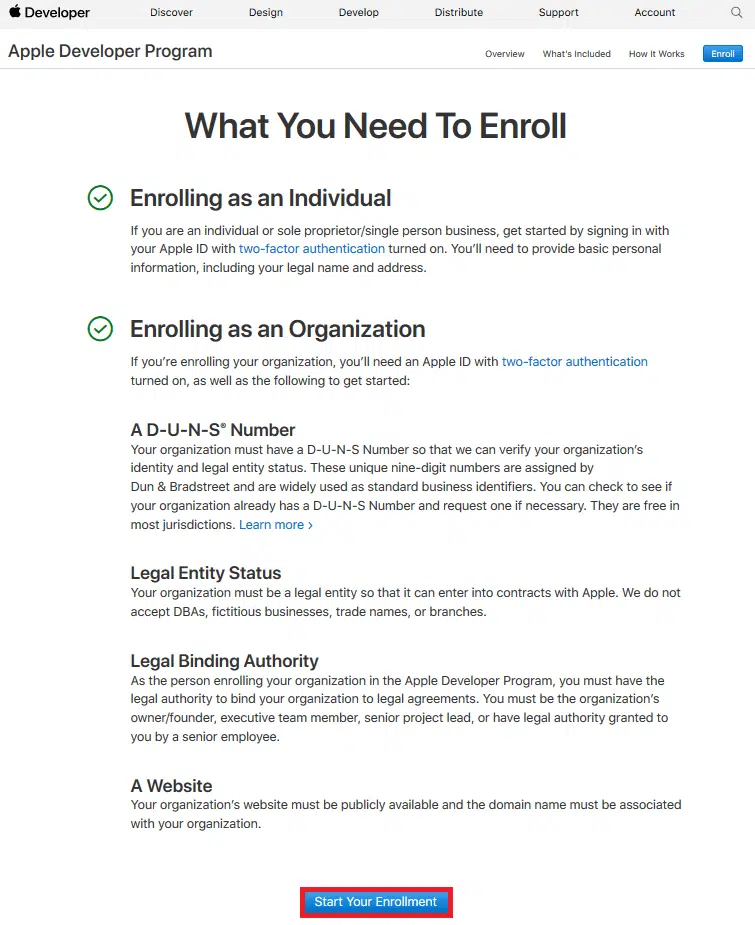
Visit the Apple Developer enrollment page.
You will see the following page:
Register an Apple Developer Account
Click the Start Your Enrollment button.
2. Sign In with Your Apple ID
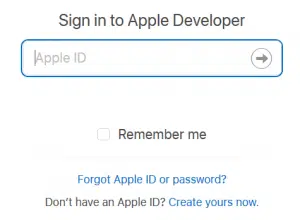
Sign in using your Apple ID.
If you do not already have an Apple ID, you can create a new one.
3. Choose Your Account Type

Select whether you want to register as an individual or as a company or organization.
Individual / Sole Proprietor / Single Person Business:
This option is suitable for individuals or businesses that are not officially registered as a recognized legal organization.
An individual account generally uses one primary Apple Developer account holder.
Company / Organization:
Legally recognized companies and organizations can select this option.
Organizations may be required to provide a D-U-N-S Number to verify their legal identity.
This type of account also allows organizations to manage multiple users with different roles and permissions.
4. Select the Apple Developer Program
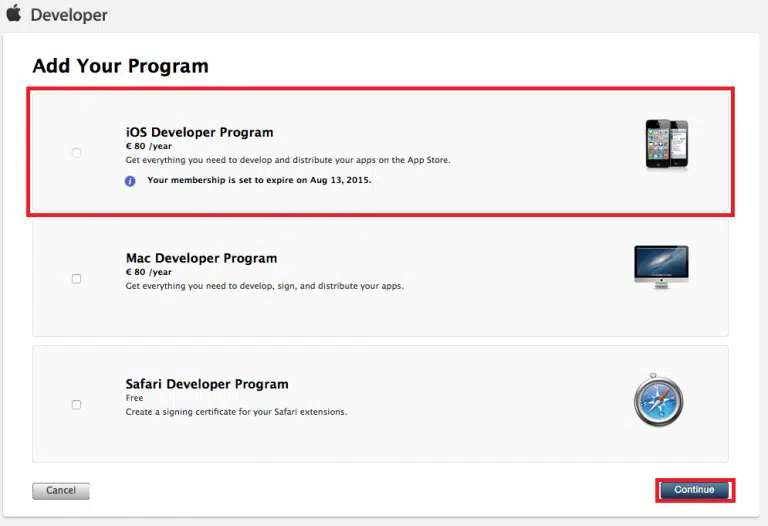
Choose the Apple Developer Program by selecting the appropriate checkbox.
5. Enter Your Contact Information

Fill in all the required contact details for your Apple Developer account.
Read the Apple Developer Program License Agreement, select the checkbox confirming that you have read and accepted the agreement, and then click Continue.
6. Review Your Information
Make sure that all the information you entered is correct.
Then click Continue.
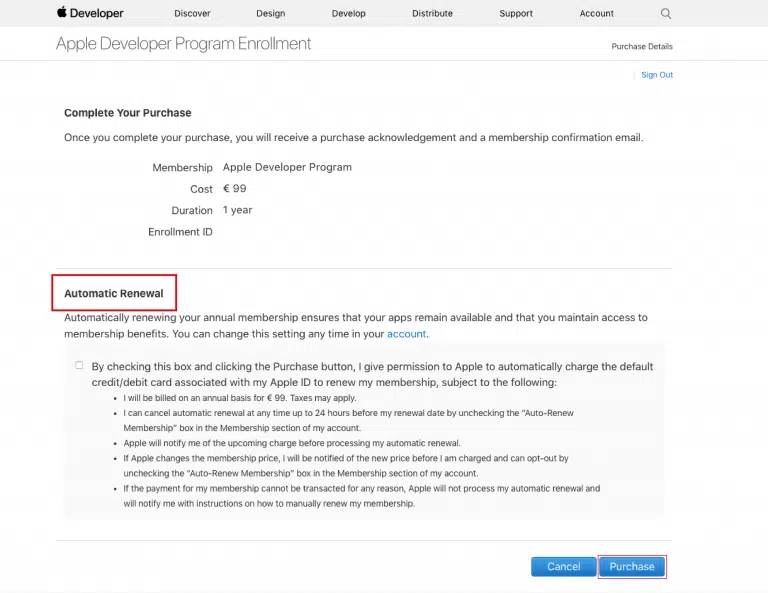
7. Purchase Your Apple Developer Membership
Click Purchase to complete the registration and pay the annual Apple Developer Program membership fee.
If you want your membership to renew automatically, make sure the automatic renewal option is enabled.
8. Complete the Payment
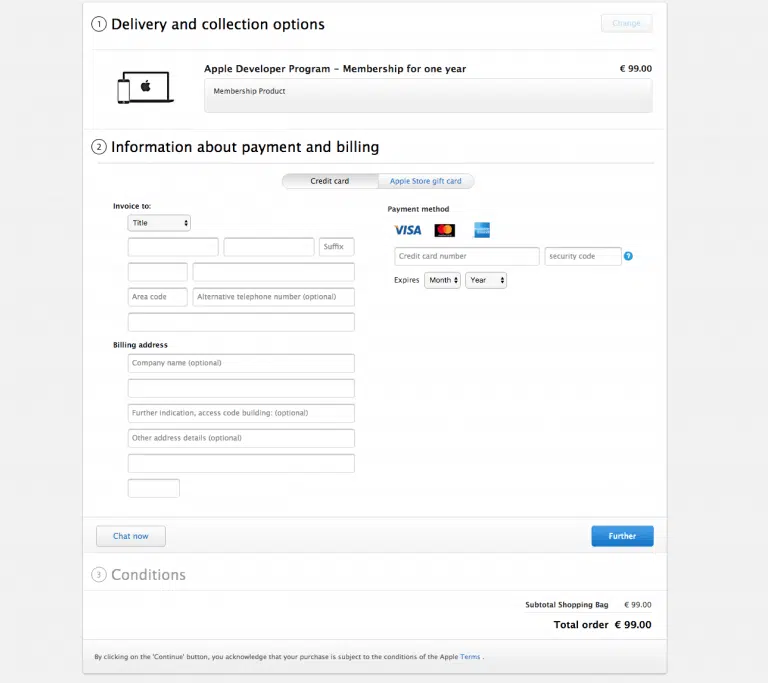
You will be redirected to the payment page.
Enter the required billing and payment information and complete the payment.
9. Check Your Email
A confirmation email may be sent to your registered email address with information related to activating or confirming your developer account.
10. Activate Your Account

Follow the instructions in the confirmation email to complete the activation process.
Note: After your registration has been processed, Apple will send you a confirmation email informing you that your Apple Developer account has been successfully activated.
Apple Developer Account Registration Completed
You have now completed the process of registering an Apple Developer account and can begin preparing your applications for publication on the App Store.
How to Upload an App to the Apple App Store
After activating your developer account, you can use Apple’s developer tools and App Store Connect to manage and submit your applications for review and publication.
Frequently Asked Questions About Apple Developer Registration
Do I pay the $99 fee monthly or annually?
The Apple Developer Program membership fee is paid annually.
Is there a specific limit on the number of applications I can publish with an Apple Developer account?
Apple does not generally define a simple fixed limit on the number of applications you may submit. However, every application must comply with Apple’s App Store Review Guidelines and developer policies.