
The Importance of Backing Up Your Website
Many website owners around the world face cyberattacks, technical problems, or unexpected failures that may cause the loss or corruption of some or all website files.
This is why creating a website backup is extremely important. A backup is an identical copy of your website files and data that can be restored whenever necessary to return your website to its previous working condition.
A complete website backup contains two main types of data:
-
WordPress Files
WordPress files include all folders and files related to your WordPress website, such as the wp-content folder, wp-includes folder, wp-config.php file, and many other files that can be found inside your hosting File Manager after installing WordPress.
-
MySQL Database Tables
The second important part of your website backup is the MySQL database.
These database tables can be accessed through phpMyAdmin and contain important website information created after WordPress installation, including your posts, pages, comments, settings, and other website data.
Therefore, if you subscribe to a website backup service, you should make sure that the backup includes both:
-
WordPress files.
-
MySQL database tables.
This ensures that your backup is complete and can be restored properly whenever necessary.
Cost of Creating a Website Backup
There are three main ways to create a website backup. Some methods are completely free, while others require payment.
Free Backup Methods
You can back up your website free of charge either manually, by downloading and saving your website files and database yourself, or by using a free WordPress backup plugin.
Paid Backup Methods
There are also several paid solutions for website backups.
Paid solutions often provide more advanced features than free methods. You can subscribe to a backup storage service that creates backups weekly, daily, or even in real time.
You can also purchase premium WordPress plugins that provide additional features such as:
-
More frequent backups.
-
Automated scheduling.
-
Multiple storage locations.
-
Advanced restoration options.
-
Better security and support.
Note: Some web hosting providers offer paid backup services separately, while others include backup services as part of their hosting plans.
Methods for Creating a WordPress Website Backup
There are three main methods for creating a WordPress backup. Below, we explain each method in detail.
Method 1: Creating a Backup Using a WordPress Plugin
Using a WordPress plugin is one of the easiest and most effective ways to create website backups automatically.
All you need to do is install the appropriate plugin and configure the backup settings, such as:
-
How often backups should be created.
-
Where the backups should be stored.
It is strongly recommended that your backups be stored outside your website hosting server.
Best Plugins for Creating WordPress Backups
There are many WordPress plugins available for creating website backups. Some are free, while others are paid.
One of the most popular options is UpdraftPlus.
UpdraftPlus allows you to create comprehensive backups that include both website files and database tables.
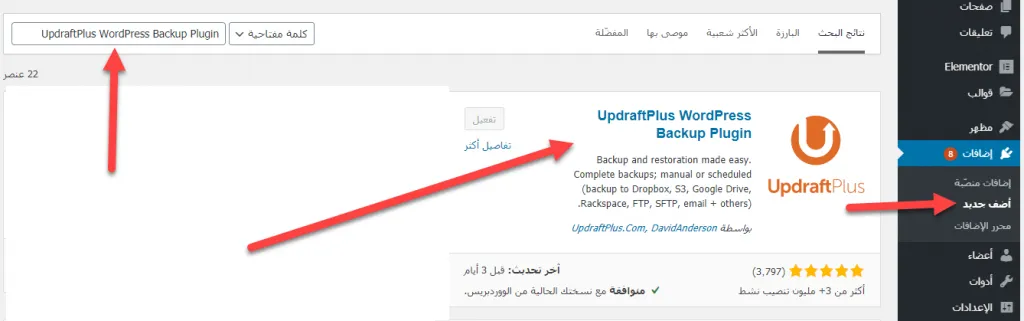
Installing UpdraftPlus and Configuring Backup Settings
From your WordPress dashboard, go to:
Plugins → Add New
Search for UpdraftPlus, then click:
Install → Activate
After activating the plugin, click Settings to access the backup configuration page.
The settings page will then appear.
One of the most important settings is determining how often a website backup should be created.
Depending on the available options, backups may be scheduled from every few hours to monthly.
Some advanced scheduling features may require a paid version of the plugin.
Another important setting is selecting the Storage Location where your website backups will be saved.
Available options may include:
-
Google Drive.
-
Dropbox.
-
Other cloud storage services.
After selecting your preferred storage location and clicking Save Changes, the plugin will ask you to connect your account with the selected cloud storage service.
For example, if you select Google Drive, follow the instructions to connect your Google Drive account.
Some Features Available in Paid Versions
-
Easily migrate website backups to a new domain or hosting provider.
-
Professional technical support.
-
Automatic backups without manual intervention.
-
Backing up WordPress files and other website files.
-
Scheduling website backups.
Creating a Backup Using the Free Version of UpdraftPlus
Even when using the free version of UpdraftPlus, you can still create website backups manually.
Go to the plugin settings and click:
Backup Now
Before creating the backup, make sure you have selected and connected an appropriate storage location.
Other WordPress Backup Plugins
There are many alternative WordPress backup plugins that work in a similar way.
WPvivid Backup
WPvivid Backup is another popular WordPress plugin that allows users to easily create website backups.
A free version is available through the official WordPress plugin directory, while a premium version provides additional features.
BackupBuddy
BackupBuddy is a premium WordPress plugin offering website security and backup tools.
It can automatically create regular backups and store them outside your website server, helping protect your backup even if the website itself becomes unavailable.
BlogVault
BlogVault provides WordPress website backup services with options for regular automatic backups.
Depending on the service plan, backups may be created daily or more frequently.
It may also support external storage services such as Google Drive and Dropbox.
Backup Services Provided by Web Hosting Companies
Some hosting providers offer website backup services for free, while others provide them as paid services.
However, you should not rely completely on hosting company backups without understanding their backup policies.
Before purchasing hosting, make sure you understand:
-
Whether backups are included.
-
How frequently backups are created.
-
How long backups are retained.
-
Storage limits.
-
Whether both website files and databases are backed up.
It is usually safer to maintain your own independent backup in addition to any backups provided by your hosting company.
Method 2: Creating a Backup Through Your Hosting Provider
Some hosting providers automatically create and store backups for your website.
These backups are often created daily and can usually be downloaded whenever needed.
It is recommended to periodically download the latest backup so that you always have an independent copy available in case of an emergency.
If your hosting provider uses cPanel, you may be able to access:
cPanel → Backup
From there, you can download your website backup.
Make sure that the backup provided by your hosting company includes:
-
Complete WordPress files.
-
Website database tables.
You should also check the storage limit provided by your hosting company.
Some hosting providers may impose limits on the amount of backup storage available.
If you download backups to your own computer or external storage service, the hosting provider’s storage limit will not affect those downloaded files.
You can also create a manual backup using File Manager and phpMyAdmin, as explained in the next method.
Method 3: Creating a Website Backup Manually
The third method involves creating the entire WordPress backup manually.
This means you will not rely on plugins or automated backup software.
A complete manual backup consists of two main parts:
-
Backing up website files.
-
Backing up database tables.
1. Creating a Backup of Website Files
WordPress files are one of the most important parts of your website backup.
You can download them through either:
-
cPanel.
-
FTP.
First: Using cPanel
Log in to your hosting account and open:
cPanel → File Manager
Open the public_html directory.
Inside this directory, you will usually find your website files, including WordPress files.
If your hosting account contains only one website, these files will normally belong to that website.
If your hosting account contains multiple websites, make sure you select the correct folder for the website you want to back up.
Select your website files and compress them into a single archive file.
Common formats include:
-
ZIP
-
RAR
After compressing the files, right-click the archive and select Download.
Save the file to your computer.
It is recommended to store another copy in a separate location such as:
-
Google Drive.
-
Dropbox.
-
External hard drive.
This protects your backup if your computer becomes damaged or unavailable.
You now have a backup copy of your website files.
Second: Using FTP
You can also use FTP to download website files.
The result is essentially the same as using cPanel.
Open an FTP client and enter the FTP login details provided by your hosting company.
Once connected, you will be able to access your website files.
Download the necessary website files to your computer.
If you do not have FTP login credentials, many hosting providers automatically send them by email when you purchase hosting.
You can also create a new FTP account manually.
Go to:
cPanel → FTP Accounts
Create a new FTP account by entering:
-
Username.
-
Password.
Then click:
Create FTP Account
You can then use these credentials in your preferred FTP client.
2. Creating a Backup of Database Tables
Downloading your website files is only half of the backup process.
You must also create a backup of your WordPress database.
Open:
cPanel → phpMyAdmin
Select your WordPress database.
You will then see the database tables associated with your website.
Select all of the tables and click:
Export
Keep the database format set to:
SQL
Then click:
Go
The SQL database file will be downloaded to your computer.
You should now have:
-
One backup file containing your website files.
-
One SQL file containing your WordPress database.
Together, these files form a complete website backup that can be restored if your website becomes damaged or unavailable.
Frequently Asked Questions
When Should I Choose the Paid Version of UpdraftPlus?
The free version of UpdraftPlus can be suitable for many websites.
However, if your website is large or receives significant amounts of new data every day, a paid plan may provide greater control over:
-
Backup scheduling.
-
Storage options.
-
Restoration.
-
Technical support.
-
Website migration.
How Often Should I Back Up My Website?
There is no single backup schedule suitable for every website.
The appropriate frequency depends on how often your website data changes and how important that data is.
For example:
-
A website updated once per week may only need weekly backups.
-
A frequently updated website may need daily backups.
-
An e-commerce website with continuous transactions may require backups several times per day or even more frequently.
The more frequently important data changes, the more frequently you should create backups.
Where Should I Store Website Backups?
You should not store your only backup on your personal computer.
If the computer is lost, damaged, or compromised, you may lose the backup as well.
It is better to maintain backups in multiple locations, both online and offline.
You can use cloud storage services such as:
-
Google Drive.
-
Dropbox.
-
Other cloud storage platforms.
You may also keep a copy on an external hard drive.
How Do I Restore a Backup?
Website backups can be restored using WordPress backup plugins.
Many backup plugins allow you to restore your website directly from the plugin dashboard.
You can also restore a website manually.
First: Restore Website Files
Open your hosting File Manager and navigate to the location where your website files are stored.
Click Upload, select your website backup archive, and upload it.
Extract the archive into the appropriate website folder.
Your website files will then be restored.
Second: Restore the Database
Open phpMyAdmin.
Go to the database where you previously exported your tables.
Instead of selecting Export, choose:
Import
Then select the SQL backup file you previously downloaded.
After importing the database and restoring your website files, your complete website backup will have been restored.
[su_divider text=”Contact the Company Now” anchor=”tel:01212601601″ divider_color=”#f00000″ size=”5″ margin=”40″]
[su_button url=”tel:01212601601″ style=”3d” background=”#14971a” color=”#ffffff” size=”6″ wide=”yes” center=”yes” radius=”round” icon=”icon: phone-square” icon_color=”#ffffff” desc=”Contact the Company Directly” title=”Order Now”]Call Us Directly[/su_button]
[su_button url=”tel:01212601601″ style=”bubbles” background=”#ff1b19″ color=”#ffffff” size=”4″ wide=”yes” center=”yes” radius=”round” icon=”icon: laravel” icon_color=”#ffffff” desc=”First Marketing” title=”Order Now”]Order Your Website Now[/su_button]