

How to Create a Customer Support Live Chat
Creating a customer support live chat offers several important benefits, including easier communication with customers, collecting customer data and using it for targeting, creating an interactive chatbot to respond to customers outside working hours, supporting voice communication or direct communication with customers, generating required reports, connecting the chat system to your website, communicating with customers via email, and allowing customers to leave a message if they exit the chat.
How to Connect Live Chat to Your Website
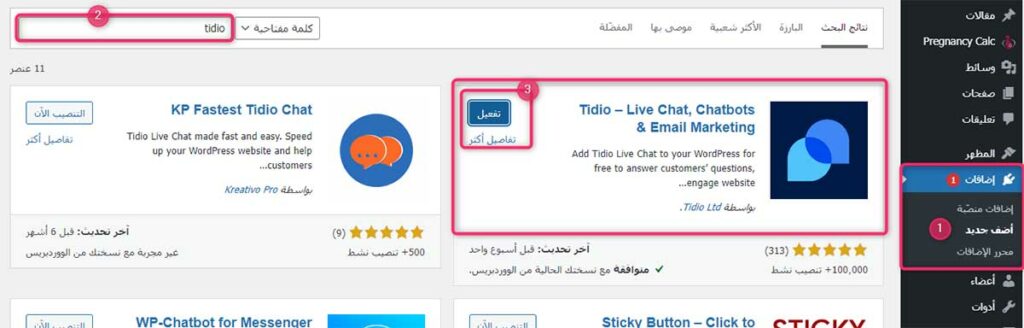
First, open your WordPress dashboard, click on Plugins, and search for Tidio Live Chat through the following link: Click Here
(image)
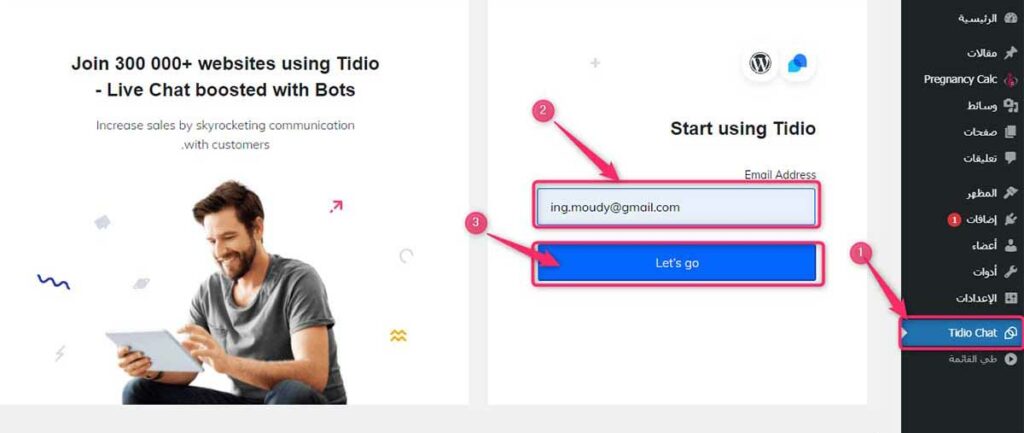
After that, click Activate. The plugin will be activated immediately, and you can begin completing the next steps. Once activated, a new screen will appear asking you to enter your email address.
Create a Customer Support Live Chat
(image)
After entering your email address, you will be redirected to the Tidio chat platform.
Create a Customer Support Live Chat
(image)
Enter your business information.
How to Create a Customer Support Live Chat
(image)
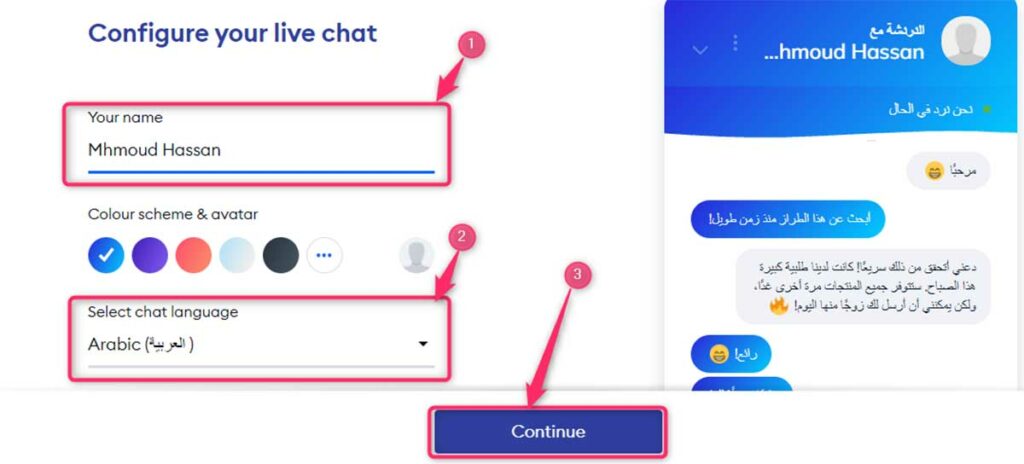
The system will then ask you to choose the theme used for the chat, followed by creating a new password.
How to Create a Customer Support Live Chat
(image)
Once you access the chat page and complete all required information, your chat system will be fully configured and ready to use.
How to Create a Customer Support Live Chat
(image)
Your Website Is Now Connected to the Chat System
You can now access the dashboard and manage your live chat directly.
How to Add an API-Based Interactive Chatbot Using Crisp Chat
Go to the Crisp Chat website and complete the registration form shown on the page.
How to Create a Customer Support Live Chat
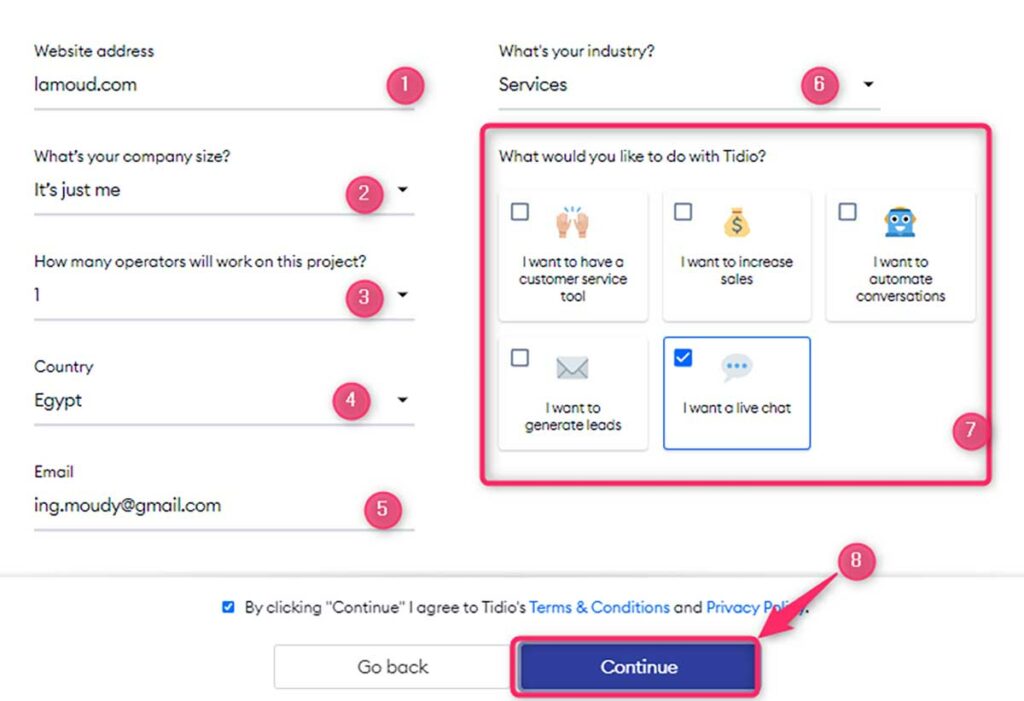
In the next step, you will be asked to provide information about your website. Complete the form and continue.
The next window will appear. Click on “Discover My Dashboard.”
To add the chatbot API code to WordPress, go to the HTML code section as shown in the image below.
How to Create a Customer Support Live Chat
Copy the code as shown in the following image.
How to Create a Customer Support Live Chat
Next, go to your WordPress dashboard, click Appearance, then Theme File Editor, and select the footer file from the side menu as shown below.
How to Create a Customer Support Live Chat
(image)
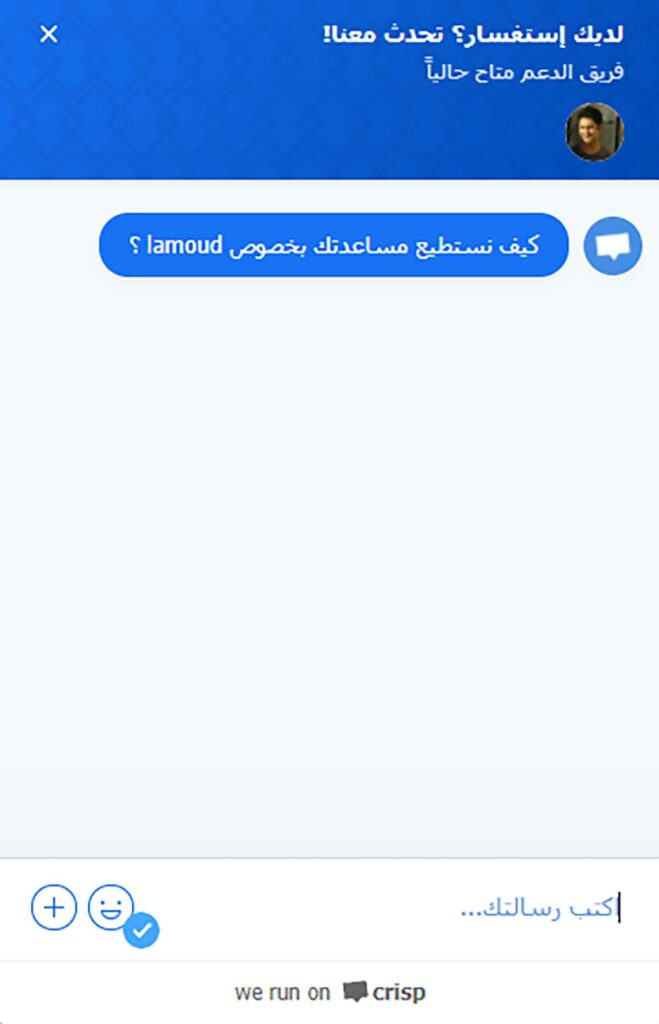
After that, open your website homepage or any other page. You should notice the live chat icon appearing on the website. You can then test the system by sending messages from the dashboard and interacting with the chat as a customer.
How to Create a Customer Support Live Chat
[su_divider text=”Contact the Company Now” anchor=”tel:01212601601″ divider_color=”#f00000″ size=”5″ margin=”40″]
[su_button url=”tel:01212601601″ style=”3d” background=”#14971a” color=”#ffffff” size=”6″ wide=”yes” center=”yes” radius=”round” icon=”icon: phone-square” icon_color=”#ffffff” desc=”Contact the Company Directly” title=”Order Now”]Call Us Directly[/su_button]
[su_button url=”tel:01212601601″ style=”bubbles” background=”#ff1b19″ color=”#ffffff” size=”4″ wide=”yes” center=”yes” radius=”round” icon=”icon: laravel” icon_color=”#ffffff” desc=”First Marketing” title=”Order Now”]Order Your Website Now[/su_button]