
How to Create a Google Play Developer Account with First Marketing
In this tutorial, we explain how to create a Google Play Developer account so that you can upload your application after making the necessary modifications to it.
What Is a Google Play Developer Account?
A Google Play Developer account is a Google account designed specifically for developers.
Through this account, you can upload your applications and games and manage them from your developer dashboard.
You can publish applications, unpublish them, and edit their information, including the application name, description, images, and other related details.
You can also add developer information such as your website, which is optional, email address, phone number, and other details.
Through the account, you can view detailed statistics about your applications, including daily downloads, the types of devices used to install your applications, errors that may occur while using your apps, user ratings, and other useful information.
You can also manage your applications and games and add additional features such as Google Play Games Services, which allows you to add leaderboards and other gaming features.
What Do I Need to Create a Google Play Developer Account?
To create a new Google Play Developer account, you will need:
-
A bank card with at least $25 available.
-
A Google account.
-
An email address. You can use a Gmail address.
How to Create a Google Play Developer Account
To create your account, follow these steps:
1. Create a Google Play Developer Account and Access the Dashboard
To create a new developer account for $25, go to the Google Play Developer registration page.
If you are not already signed in to your Google account, you will see a login screen.
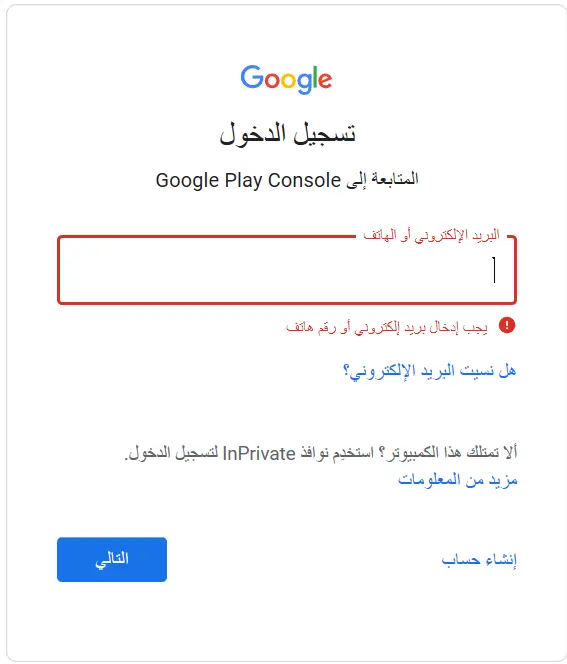
How to Create a Google Play Developer Account – Google Play Developer Console
Enter your email address and password.
2. Review the Account Information and Accept the Terms
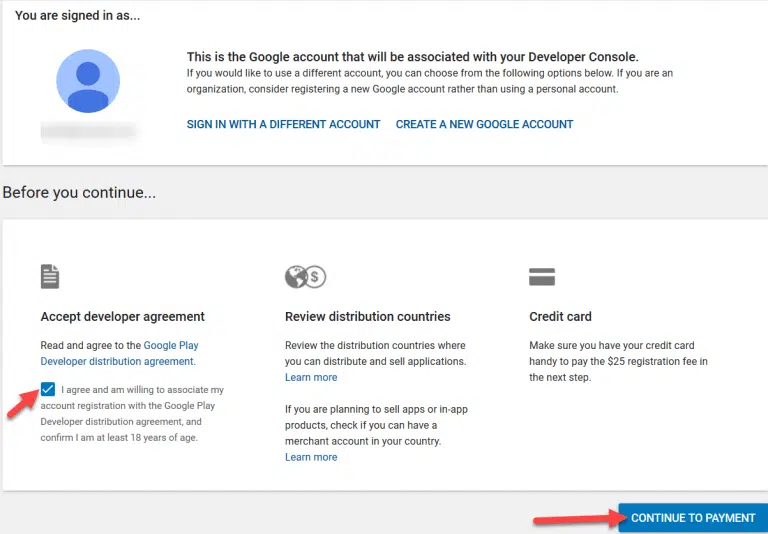
You will then see a page explaining that:
“This is the Google Account that will be associated with your Developer Console.”
Agree to the terms by selecting I agree at the bottom of the page.
Then click Continue to Payment.
3. Enter Your Bank Card Information
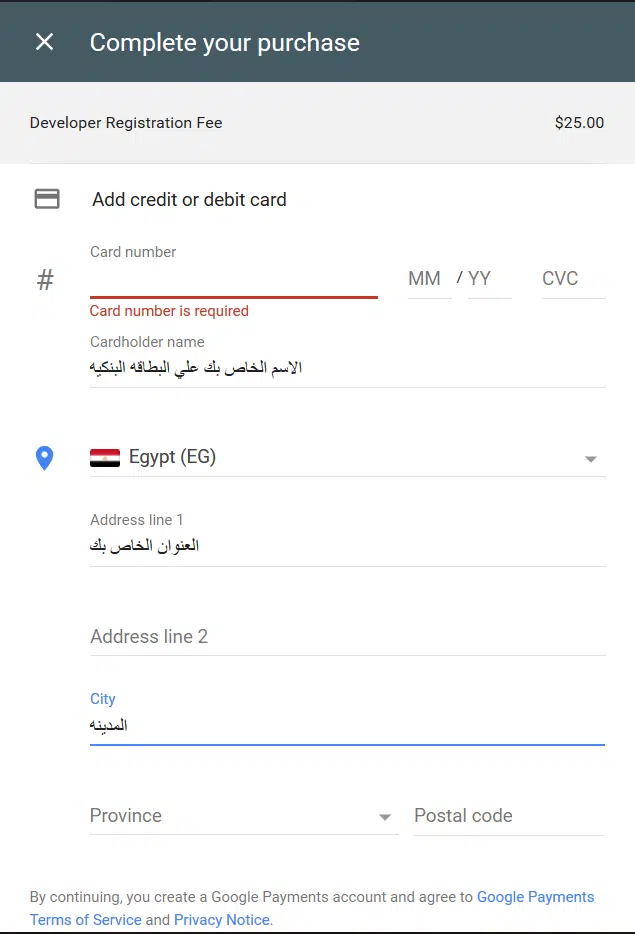
Enter your bank card details as shown in the following image:
Then click PAY.
4. Complete the Payment
If the payment is completed successfully, you will see the message:
“Your payment is complete.”
Click Continue Registration.
5. Enter Your Developer Information
You will now need to enter your developer information.
In the Developer name field, enter the name you want to appear as the developer of your applications.
You can use your personal name, your company name, or any other name you prefer.
This name will appear next to your application’s name on the Google Play Store.
In the Email address field, enter your email address.
In the Website field, you can enter your website URL or leave it blank.
In the Phone number field, enter your phone number.
Then click Complete Registration.
6. Access the Google Play Developer Console
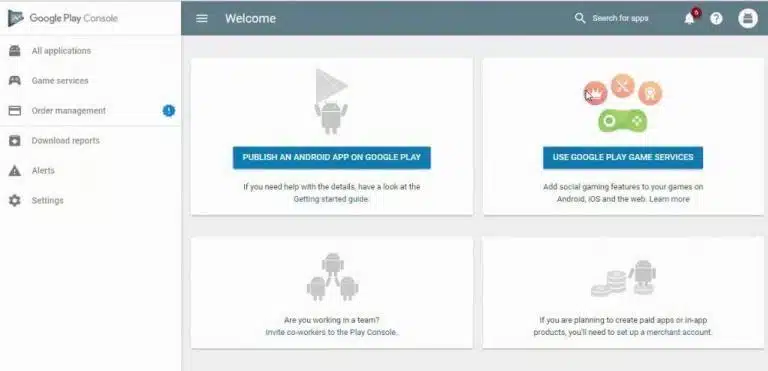
After completing the registration process, wait a moment and you will be redirected to your Google Play Developer Console.
At this point, the registration process is complete.
How to Create a Google Play Developer Account – Google Play Developer Console
You can now upload Android applications to Google Play.
There is no fixed number of applications that you can upload, provided that your applications comply with Google Play’s policies, privacy requirements, and terms of use.
There is also another type of account related to Google Play developers called a Merchant Account.
A Merchant Account is linked to your main developer account and can be used to manage paid applications and other commercial transactions on Google Play.
However, Merchant Accounts may not be available in every country.
To find out whether your country is supported, you can check Google’s list of supported countries for merchant accounts.